

The CAM Assist window opens inside your CAM package when you start CAM Assist. A header bar runs across the top. Below it, the pane for the current stage is on the left and the 3D viewer is on the right.
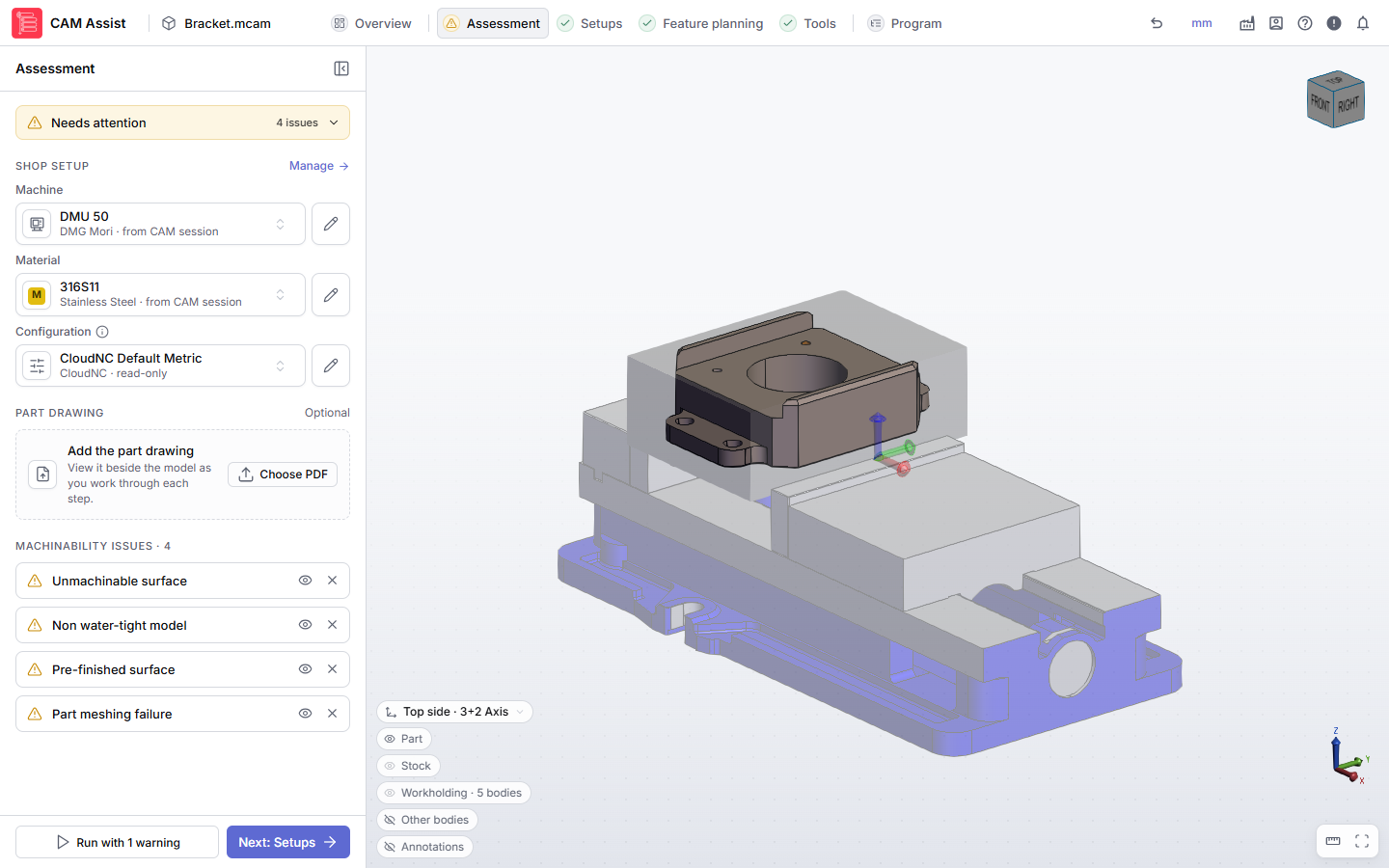
Header bar
From left to right. Hover over an icon to see its name.
| Item | What it does |
|---|---|
| CAM Assist | The product name. |
| Part name (box icon) | The part you're working on. Hover over it to see the full name. |
| Overview, Assessment, Setups, Feature planning, Tools, Program | The stages. Click one to open it. See The CAM Assist stages. |
| mm or inches (Unit System) | Switches between millimeters and inches. See Switch between mm and inches. |
| My Shop | Opens My Shop over your part: Machines, Materials, Tool libraries, Configurations and Import from file. It opens on the section you last used, or Tool libraries the first time. Click it again to go back to your part. See My Shop. |
| Account | Menu: My Account and Preferences. See My Account and CAM Assist preferences. |
| Help | Menu: CAM Assist AI Support, Help Center, About CAM Assist. See Get help from CAM Assist AI Support and About CAM Assist. |
| Report issue | Sends a problem report to CloudNC. See Report a problem. |
| Notifications (bell) | Opens the notifications panel. A number shows how many are unread. See Notifications. |
You can't open My Shop while you're picking geometry in the 3D viewer. Finish or cancel the selection first.
Stages
Each stage has a status icon next to its name. Hover over it to see whether the stage is ready, needs attention or is blocked. You can open the stages in any order, except that Setups and Feature planning stay greyed out until the assessment has finished without severe issues and the 3D model has loaded. See The CAM Assist stages.
Stage pane
The pane on the left shows the stage you're on, with its name at the top.
- Collapse (arrow next to the name) hides the pane and leaves a narrow strip of stage icons. Click Open at the top of the strip to show it again.
- Drag the edge of the pane to make it wider or narrower.
- Configuration (on Setups, Feature planning and Tools) opens the configuration this part uses. A dot on it means you've changed settings for this part only. See Configuration settings.
- A banner at the top of Assessment, Setups, Feature planning and Tools sums up what still needs doing. Click it to see each item.
Stage footer
At the bottom of every stage except Program:
| Button | What it does |
|---|---|
| Run CAM Assist | Runs CAM Assist and opens Program. The label changes to show warnings or an existing program, for example Run with 2 warnings or Regenerate program. If it's greyed out, hover over it to see why. See Why can't I run CAM Assist? |
| Next: and a stage name | Opens the next stage, for example Next: Setups. |
The Program stage has its own footer, with Cycle time report and Send to CAM package. See The Program stage.
3D viewer
The viewer shows your part, stock and workholding. Controls at the bottom:
| Control | What it does |
|---|---|
| 3D, Drawing, Split | Shown when you've added a part drawing. Shows the model, the drawing, or both. In Split, choose Model above drawing or Model beside drawing. See Add a part drawing. |
| Measure | Measures the part. See Measure the part in the 3D view. |
| Zoom to fit | Fits the part to the view. |
In the bottom-left corner, the setup selector and body chips change what the viewer shows. See Viewer controls.
Program out of date
If you change something after CAM Assist has generated a program, Program out of date appears over the viewer. Click Regenerate to run CAM Assist again with the new inputs, or Later to hide the message.
"The page was not found"
CAM Assist couldn't open the page you asked for. Click a stage in the header to carry on. If it keeps happening, report a problem.
Videos
These CloudNC Academy videos were recorded with an earlier version of CAM Assist, so the screens look different.