

The notifications panel lists CAM Assist updates, scheduled maintenance and announcements from CloudNC. Open it with the bell icon (Notifications) in the header at the top of the window. A number on the bell shows how many notifications you haven't read. To close it, click Close notifications, press Esc or click outside the panel.
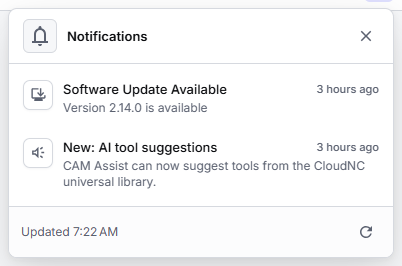
What you'll see
CAM Assist checks for notifications when it starts. Click Refresh notifications (the refresh icon at the bottom of the panel) to check again; Updated shows when it last checked. The update status is always at the top; other notifications are newest first.
| Notification | What it means | Click it to |
|---|---|---|
| Required Software Update | Your version is no longer supported. You must update to keep using CAM Assist. | Open the update window. See Update CAM Assist. |
| Software Update Available | A newer version is available. Updating is optional. | Open the update window. |
| You're up to date | You're running the latest version. | (Nothing) |
| Software Update | CAM Assist couldn't check your version. The message says why. | (Nothing) |
| Scheduled Maintenance | CloudNC services will be unavailable for a while. | See the From: and To: times. |
| Release name | A new release of CloudNC's services. | Read it; click View release notes if shown. |
| Any other title | An announcement from CloudNC. | Read it in full. |
A notification counts as read once it's fully visible in the open panel.
"Software Update" messages
These don't stop you using CAM Assist. If you see one, make sure you're running the latest version of CAM Assist. See Update CAM Assist ("Your current version of CAM Assist is no longer supported"). If you are and still see it, contact CloudNC support with the message text.