

Preferences set the units, language, theme, notifications and SpaceMouse support of the CAM Assist window. Open them from Account (person icon in the header) > Preferences. They're saved on this computer, not in your CloudNC account, so another computer has its own. See Where CAM Assist stores your settings.
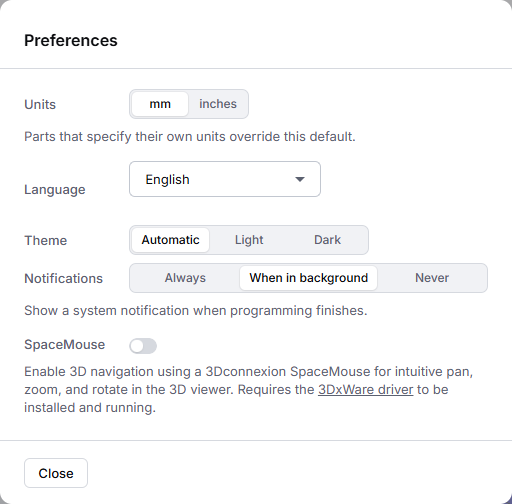
| Setting | Options | Default |
|---|---|---|
| Units | mm or inches. When CAM Assist starts, it switches to your part's units. See Switch between mm and inches. | inches if your computer's language is US English, otherwise mm |
| Language | English, Español, Français, Deutsch, Italiano, 简体中文, Čeština, Suomi, 日本語, Türkçe, Tiếng Việt, Português, 한국어, Svenska, 繁體中文. Takes effect after you restart CAM Assist. See Change the CAM Assist language. | English in Autodesk Fusion and GibbsCAM. In Mastercam and Siemens NX, your CAM package's language if CAM Assist supports it, otherwise English. In SolidCAM, SolidCAM's language if CAM Assist supports it |
| Theme | Automatic (follows your computer's light or dark setting), Light or Dark | Automatic |
| Notifications | When to show a system notification as CAM Assist finishes programming: Always, When in background (only when CAM Assist isn't the active window) or Never. Only shown if your version of CAM Assist can show system notifications. | When in background |
| SpaceMouse | Pan, zoom and rotate the 3D view with a 3Dconnexion SpaceMouse. Needs the 3DxWare driver installed and running. | Off |
Language only appears if your version of the CAM Assist add-in supports changing language. If it's missing, update CAM Assist.
Changes apply as you make them. Click Close when you're done.
SpaceMouse won't connect
If you see "Could not connect to a 3Dconnexion SpaceMouse", make sure the 3DxWare driver is installed and running, then turn SpaceMouse off and on again.