

A configuration holds the clearances, stock to leave, finishing choices and cutting parameter settings CAM Assist uses when it programs a part. You pick one for each part in the Assessment stage, and can change its settings for that part only or for everyone who uses it.
Open a configuration
- For the open part: click Configuration at the top of the Setups, Feature planning or Tools stage, or the pencil next to the Configuration in the Assessment stage. A dot on the Configuration button means you've changed settings for this part only.
- In My Shop: click My Shop in the header, then Configurations, then View or Edit. See The Configurations page in My Shop.
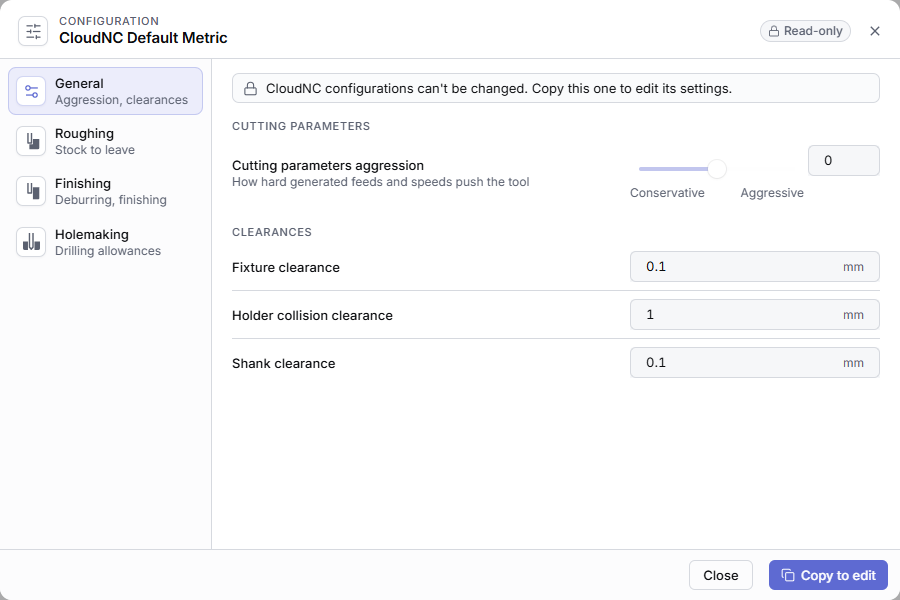
The settings are split over four tabs: General, Roughing, Finishing and Holemaking. A warning icon on a tab means a setting on it needs fixing.
Empty fields use the CloudNC default and show CloudNC default underneath. If settings were added to CAM Assist after the configuration was saved, a banner says so and a number on each tab shows how many; they use the CloudNC default until you save. Every distance must be 0 or more ("Enter a non-negative decimal value."), in mm or inches following your unit setting. CAM Assist uses at most 100 mm (3.94 in) for any distance.
CloudNC configurations are read-only: "CloudNC configurations can't be changed. Copy this one to edit its settings." Click Copy to edit to make your own copy.
General
| Setting | What it does |
|---|---|
| Tailor AI-driven cutting parameters to each setup | Enabled generates cutting parameters separately for each setup, based on its workholding security. See What is workholding security? |
| Cutting parameters aggression | How hard the AI-driven feeds and speeds push the tool, from −1 (Conservative) to 1 (Aggressive) in steps of 0.1. 0 makes no adjustment. |
| Fixture clearance | Minimum gap between the cutting tool and fixtures or avoidance bodies. |
| Holder collision clearance | Minimum gap between the tool holder and surrounding geometry. |
| Shank clearance | Minimum gap between the non-cutting tool shank and surrounding geometry. |
Roughing
| Setting | What it does |
|---|---|
| Radial stock to leave | Material left on walls after roughing, for finishing to remove. |
| Axial stock to leave | Material left on floors after roughing, for finishing to remove. Increase it if finishing needs more material to reach size or surface finish. |
Finishing
| Setting | What it does |
|---|---|
| Deburring tool (Deburring) | Chamfering tool or Ball mill. Chamfering tool isn't available if your CAM package doesn't support it for deburring, for example Siemens NX 2212 and earlier. |
| Chamfer width (Deburring) | Width of the deburring chamfer, measured along the original face. |
| Maximum internal corner radius | Largest corner radius of an end mill used to finish a wall meeting a floor at a sharp 90° edge. |
| Automatic facet splitting | Enabled splits faces into separate regions so CAM Assist can finish more of the part. Only applies where your CAM package supports it (Autodesk Fusion). Turn it on if the Assessment stage reports a face that needs splitting. See Face requires splitting. |
| Allow equal tool and feature radii in vertical corners | Enabled lets a tool finish a vertical corner whose radius closely matches the tool's. Gives a cleaner corner but increases tool engagement. |
| Finishing operation order | Group by operation type puts flat, wall and freeform finishing operations in separate groups. Minimize tool changes mixes operation types to reduce tool changes. |
Holemaking
| Setting | What it does |
|---|---|
| Drill undersize allowance | How much smaller than the hole a drill may be. |
| Drill oversize allowance | How much larger than the hole a drill may be. |
Some CAM packages add their own settings to these tabs, for example GibbsCAM process preferences. If one is required and empty, you see "Choose a value for each required add-in option."
Save your changes
When you open the configuration for the open part, the save button offers:
| Option | Effect |
|---|---|
| Save to this part (the default) | Uses these settings for this part only. The saved configuration is unchanged. |
| Update configuration | Overwrites the saved configuration. Shared within your organization. Not available for CloudNC configurations. |
| Save as new configuration | Keeps the original and creates a copy with these settings. |
Settings you change for this part only show a restore button with the tooltip "Locally modified. Restore to <value>."
From My Shop, Save updates the configuration. To rename one of your own configurations, see Create, copy or delete a configuration.
If you close the dialog with the X or Escape while it has unsaved changes, CAM Assist asks whether to Keep editing or Discard changes.
Videos
These CloudNC Academy videos were recorded with an earlier version of CAM Assist, so some screens may look different.