

Send CloudNC a description of a problem from inside CAM Assist, with the part data if you choose. Use it for anything that went wrong, with or without an error message.
Report a problem
- In the CAM Assist window, click Report issue (the icon to the left of the bell) in the header at the top of the window. If you're looking at an An error occurred dialog, use that dialog instead: it works the same way and links your report to the error.
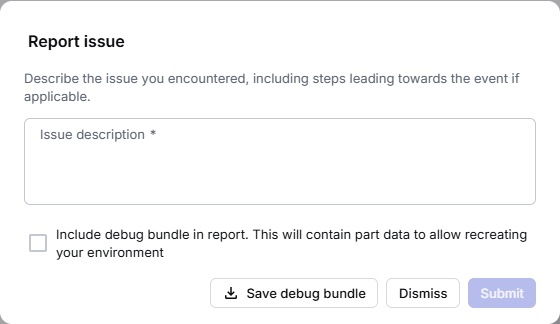
- In Issue description, say what you did and what went wrong.
- To let CloudNC recreate the problem, tick Include debug bundle in report. This will contain part data to allow recreating your environment.
- Click Submit.
You'll see "Issue successfully reported" with an event ID. Quote that ID if you contact CloudNC support about it.
Send the debug bundle yourself
If you'd rather email support, or Submit isn't shown:
- Click Save debug bundle and choose where to save it.
- Send the saved file to CloudNC support with a description of the problem.
If you see "Failed to save debug bundle. Please try again or dismiss.", try again and choose a different folder. See also Save a debug bundle.
If the dialog says "Please report the issue to your account manager.", there's no Submit button. If Save debug bundle is shown, save the bundle and include it when you contact your account manager.
In CAM Assist for GovCloud (US), debug bundles aren't available: there's no Save debug bundle button and no option to include one in a report.
Report a problem from Autodesk Fusion
Some errors in Autodesk Fusion open a report dialog instead of a plain message.
- Tick Upload log file? and Upload STEP file? to include them. This sends the part to CloudNC.
- Optionally fill in E-mail (optional) and Description (optional).
- Click Send report, or Close without sending.