

CAM Assist takes you through a part in six stages, shown across the top of the window: Overview, Assessment, Setups, Feature planning, Tools and Program. This article explains what each stage is for and what its status means.
You can open the stages in any order, and run CAM Assist from any of them. See How do I work through a part in CAM Assist? for the usual order.
Stage status
Each stage in the header has a status icon. Hover over it to see what it means:
| Status | Meaning |
|---|---|
| Ready | Nothing to do in this stage. |
| Needs attention | Something to review. You can still run CAM Assist. |
| Blocked | Something must be fixed before you can run CAM Assist. |
| Readiness not available | CAM Assist is still checking. |
Program shows Generating, Program generated or Program out of date instead. Overview has no status.
Setups and Feature planning stay greyed out until the assessment has finished without severe issues and the 3D model has loaded. No message says why; check Assessment.
At the top of Assessment, Setups, Feature planning and Tools, a banner sums up the stage's status and how many issues it has. Click it to see each issue.
At the bottom of each stage, Next: opens the next stage, and the Run button runs CAM Assist. If the Run button is greyed out, hover over it to see why. See Why can't I run CAM Assist?
Overview
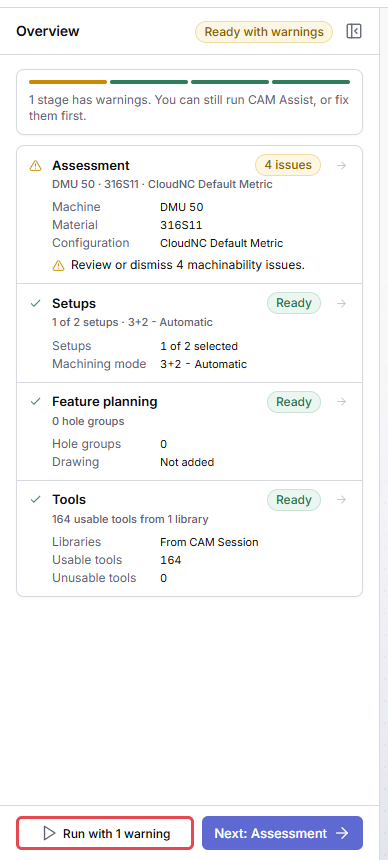
A part opens on Overview. It shows whether you're ready to run CAM Assist:
| Chip | Meaning |
|---|---|
| Ready to run | Every stage is ready. |
| Ready with warnings | Some stages have warnings. You can still run CAM Assist, or fix them first. |
| Blocked | A stage has a problem that stops the run. |
| Checking | CAM Assist is still checking. |
| Generating | CAM Assist is running. |
Below that is one row per stage, with a summary (for example the machine, material and configuration under Assessment), the number of issues, and an arrow to open the stage.
While CAM Assist runs, Overview shows Generating toolpaths with a progress bar. Once there's a program, it shows Program generated with the number of operations and tools and the cycle time. Click View program to open it.
Assessment
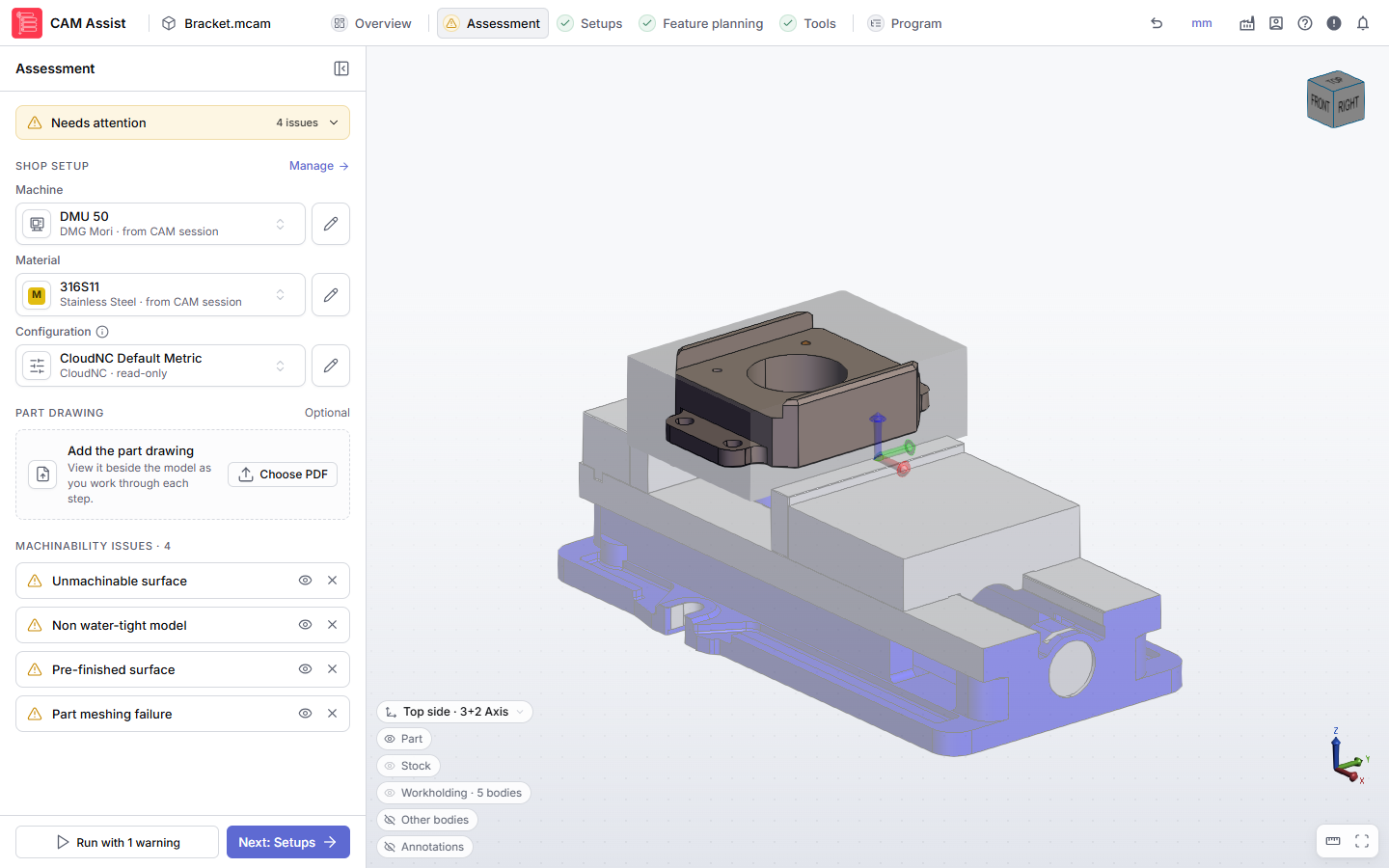
CAM Assist checks your part for problems as soon as it opens. Here you also choose what to machine it with.
| Section | What it's for |
|---|---|
| Shop setup | The Machine, Material and Configuration for this part. Manage opens them in My Shop. See Choose a machine, material and configuration. |
| Part drawing (Optional) | Attach the part's PDF drawing to view it beside the model as you work. CAM Assist doesn't read the drawing. See Attach a part drawing to view while you work. |
| Machinability issues | Problems CAM Assist found with the part, stock and setups. |
Machinability issues
Each issue type has its own card. Click a card to see what's wrong, the Recommended action and the Affected setups. Click a setup chip to focus the 3D view on that setup.
- Show on model (eye icon) highlights the issue on the part.
- Dismiss moves the issue to the dismissed list. Dismissing doesn't fix it.
- Once you've dismissed something, switch between Active and Dismissed at the top of the list. Click Reactivate to make a dismissed issue active again.
Hover over an issue's icon to see how severe it is:
| Severity | Tooltip | Effect |
|---|---|---|
| Minor | Minor issue. … | CAM Assist may produce less-than-optimal results. |
| Major | Major issue. … | CAM Assist is likely to produce unsatisfactory results. |
| Severe | Severe issue. … | CAM Assist won't produce results. Setups and Feature planning stay greyed out while it's active. |
Fix severe issues in your CAM package, then start CAM Assist again. Dismissing a severe issue lets you continue, but CAM Assist still won't produce results for the part.
If you see Couldn't finish assessing machinability., see "Couldn't finish assessing machinability" in CAM Assist.
Issues you might see
| Issue | Severity | Meaning | More help |
|---|---|---|---|
| Non water-tight model | Severe on the part, major on the stock | The model has gaps between faces, or completely enclosed features. | "Non water-tight model" in CAM Assist |
| Part not fully contained by stock | Severe | Part of the model lies outside the stock. | "The part is not fully enclosed in the stock" |
| Part not defined | Severe | A setup has no part body. | Setup and stock errors |
| Part is not consistent | Severe | The part isn't the same in every setup. | Setup and stock errors |
| Stock model mismatch | Severe | The stock isn't the same in every setup. | Setup and stock errors |
| No stock in previous setup | Severe | A setup uses the stock from the setup before it, but there's no stock there. | Setup and stock errors |
| No stock set | Major | No stock body is defined. CAM Assist uses a box 10 mm larger than the part on every side. | Setup and stock errors |
| Part meshing failure / Stock meshing failure | Major | CAM Assist couldn't fully read some faces of the part or stock body. Toolpaths near those faces may be wrong. | Repair the body in your CAM package. |
| Unmachinable surface | Major | A surface can't be reached from any direction by a typical tool. | See below. |
| Face requires splitting | Major, or minor where CAM Assist can split faces itself | A face can't be finished from one direction. | Face requires splitting |
| Pre-finished surface | Minor | The surface lies on the stock, so CAM Assist won't machine it. If that's wrong, edit the stock. |
Unmachinable surface is checked with a general set of tools on a machine that can tilt to any direction, without fixtures. It doesn't use your tool libraries or machining mode. Edit the model if that's a mistake, or continue and machine that feature yourself. After you run CAM Assist, Machinability feedback in Program checks again with your tools, machining mode and fixtures. See Tool reach recommendations and Hole issues.
Setups
Choose which setups to machine and how. There's one card per setup in your CAM package.
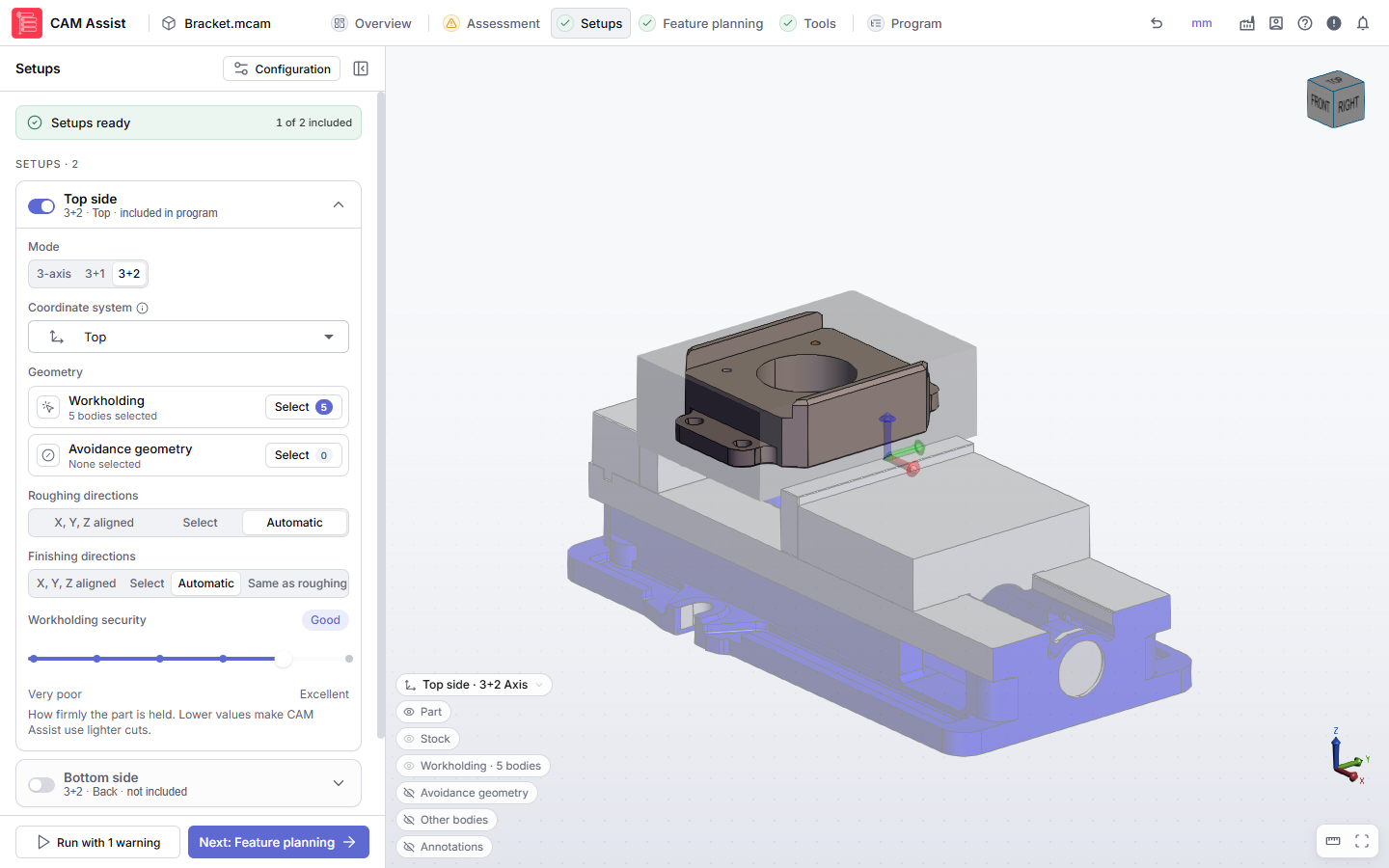
On each card:
- The switch next to the name includes the setup in the program or leaves it out.
- Mode: 3-axis, 3+1 or 3+2. See What are 3 Axis, 3+1 and 3+2 machining modes?
- Coordinate system: the plane that sets the setup's main coordinate system. Only shown if the part has coordinate systems.
- Workholding and Avoidance geometry: click Select to pick bodies in the 3D view. See Select avoidance geometry and workholding.
- Roughing directions and Finishing directions (3+2 only). See Choose machining directions for a 3+2 setup.
- Select Axis of rotation (3+1 only). See Set the rotation axis for 3+1 machining.
- Workholding security: how firmly the part is held. See What is workholding security in CAM Assist?
Below the cards:
- Toolpath Types: which operation types CAM Assist generates, such as Facing, Roughing and Holemaking.
- Finishing Geometry: leave Finish full part ticked, or clear it and click Select faces to finish only some faces. This section opens by itself if you need to pick faces.
See Set up your setups.
Feature planning
Review the holes CAM Assist found, grouped by shape. Check each hole group's type, size and thread before you run. See Review hole groups.
Hole groups are listed under Any setup, where CAM Assist picks the setup, under one list per setup, or under Not machined. To choose which setups machine a group, drag its card to a setup's list, or select setups under Restrict to setups in the group's settings. CAM Assist then only machines those holes in the setups you picked. To leave a hole group out, click Don't machine on its card. See Choose which setups machine a group.
If you've attached a part drawing, the top of the stage shows it, with Replace drawing and Remove drawing. Use 3D, Drawing and Split at the bottom of the viewer to see it beside the model.
This stage never blocks a run. Its issues are warnings.
Tools
Choose the tools CAM Assist can use for this part.
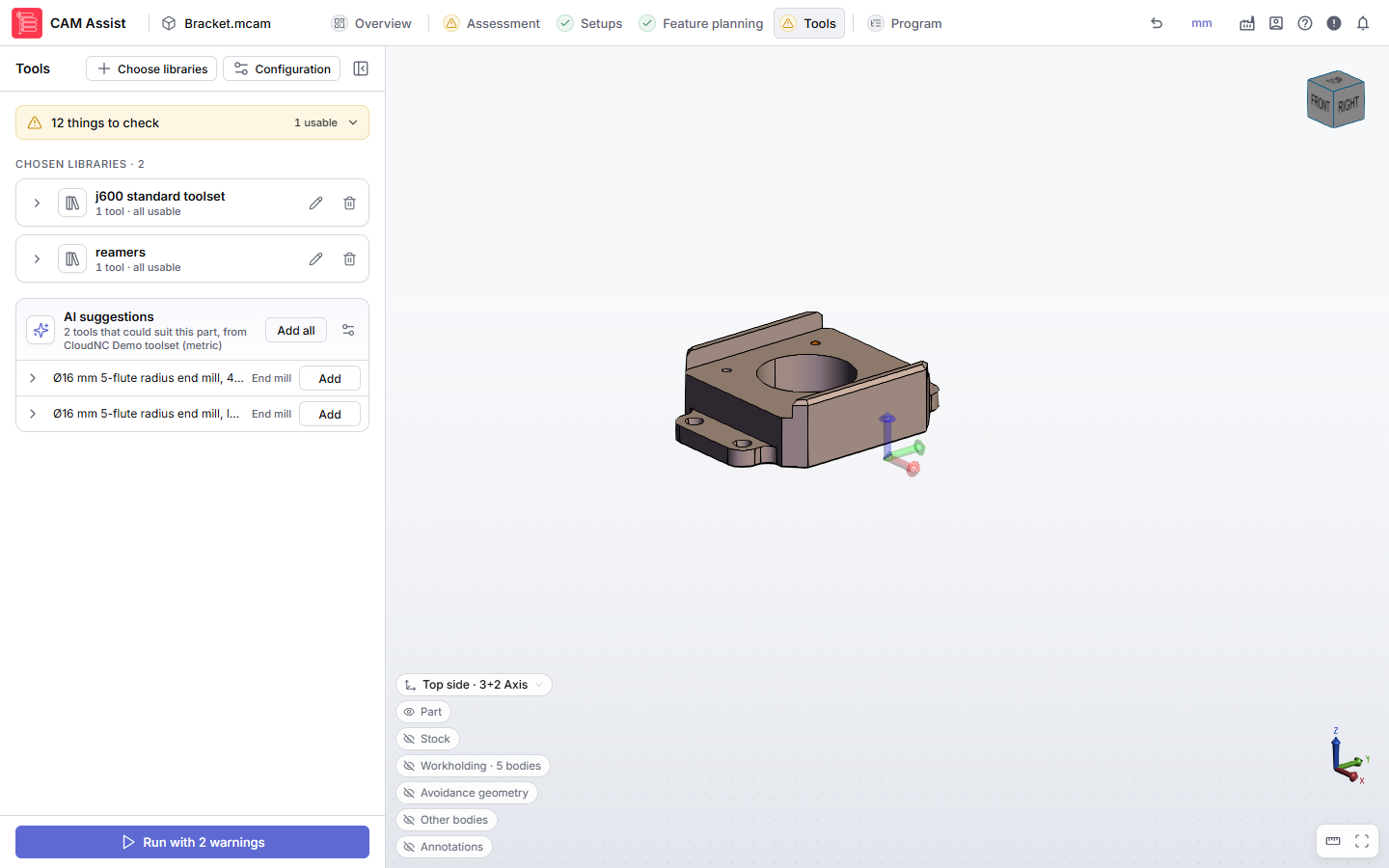
- Choose libraries adds tool libraries to the part. They're listed under Chosen libraries, with how many of their tools are usable. See Add or remove tool libraries for a part.
- Individual tools lists tools you've added one at a time, for example from AI suggestions.
- AI suggestions lists tools that could suit this part. Click Add on a tool, or Add all. See Get AI tool suggestions.
The banner at the top lists anything to check, such as an operation type with no usable tools. Unlike other stages, you can Dismiss warnings here, one at a time or with Dismiss all. Dismissed warnings come back when you open another part. Problems that block the run can't be dismissed.
Program
Program opens when you run CAM Assist. It shows the progress of the run, then the program: setups, sections and operations, with the total number of operations and tools and the cycle time.
From here you can:
- Click an operation to see its tool, cutting parameters and actions.
- Click Machinability feedback to see issues CAM Assist found with your tools, setups and fixtures.
- Click Cycle time report to see the estimated cycle time.
- Click Send to CAM package to create the operations in your CAM package.
See The Program stage.
Configuration
Configuration, at the top of Setups, Feature planning and Tools, opens the configuration this part uses: stock to leave, clearances, finishing and holemaking settings. A dot on the button means you've changed settings for this part only, and the tooltip reads Configuration settings (locally modified). See Configuration settings.
Terms used
- Severe issue: an issue that stops CAM Assist producing results.
- Dismissed issue: an issue you've reviewed and chosen to ignore. Dismissing doesn't fix it.
- Machining mode: 3-axis, 3+1 or 3+2. See What are 3 Axis, 3+1 and 3+2 machining modes?
- Hole group: holes CAM Assist machines the same way because they have the same shape.