

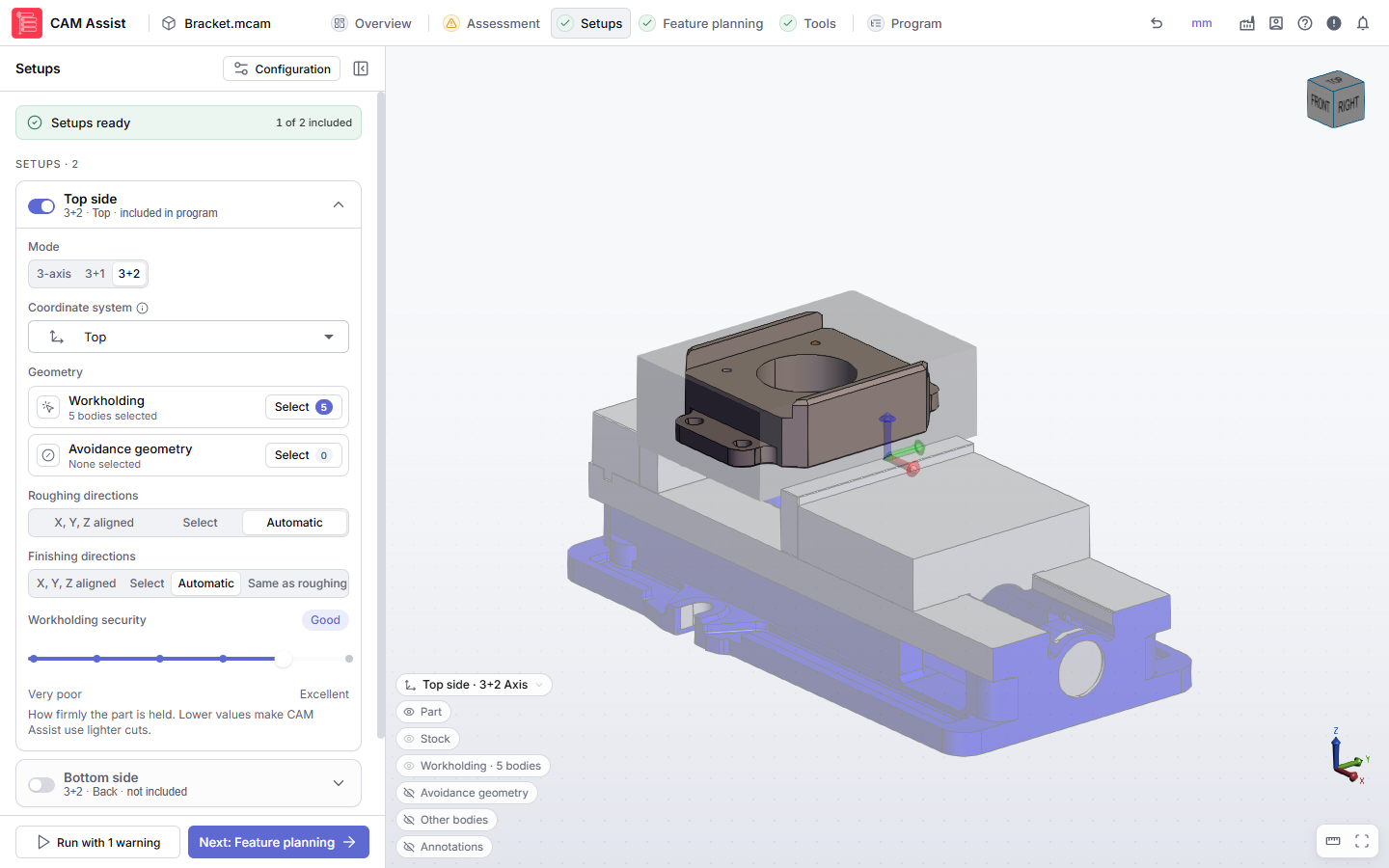
In the Setups stage, each setup from your CAM package has its own card. Here you choose which setups CAM Assist programs and how it machines each one.
Before you start
- Create the setups, part, stock and fixtures in your CAM package. CAM Assist reads them when it starts.
- The Setups stage opens once the Assessment stage has finished and has no severe issues left. See The guided workflow stages.
Set up each setup
- Click Setups in the header, or Next: Setups at the bottom of the Assessment stage.
- Use the switch on each setup card to include the setups you want CAM Assist to program. Excluded setups are greyed out and aren't run. At least one setup must be included.
- Under Mode, choose 3-axis, 3+1 or 3+2. See What are 3 Axis, 3+1 and 3+2 machining modes?
- For 3+1, also set the rotation axis.
- For 3+2, also choose the machining directions.
- If Coordinate system appears, choose the plane whose origin and axes set the setup's main work offset (for example G54).
- Under Geometry, check the Workholding and add any Avoidance geometry with Select. See Select avoidance geometry and workholding.
- Set Workholding security to match how firmly the part is held. See What is workholding security?
Click a setup's name to collapse or expand its card. The line under the name sums up its mode, coordinate system and whether it's included.
Below the cards, Toolpath Types and Finishing Geometry choose which operations CAM Assist generates and which faces it finishes. See Toolpath types and finishing geometry in the Setups stage.
Check the setups are ready
The banner at the top of the stage says Setups ready when every included setup is set up. Setups blocked lists what's missing, for example "Please select at least one setup to run CAM Assist on". Fix each item, then click Next: Feature planning or Run CAM Assist. See Why can't I run CAM Assist?
To change the part's stock to leave, clearances or finishing options, click Configuration at the top of the stage. See Configuration settings.
Videos
These CloudNC Academy videos were recorded with an earlier version of CAM Assist, so some screens may look different.
- CAM Assist for Fusion – Setting up your Part
- CAM Assist for Mastercam – Setting up my part
- CAM Assist for Siemens NX – Setting up your Part