

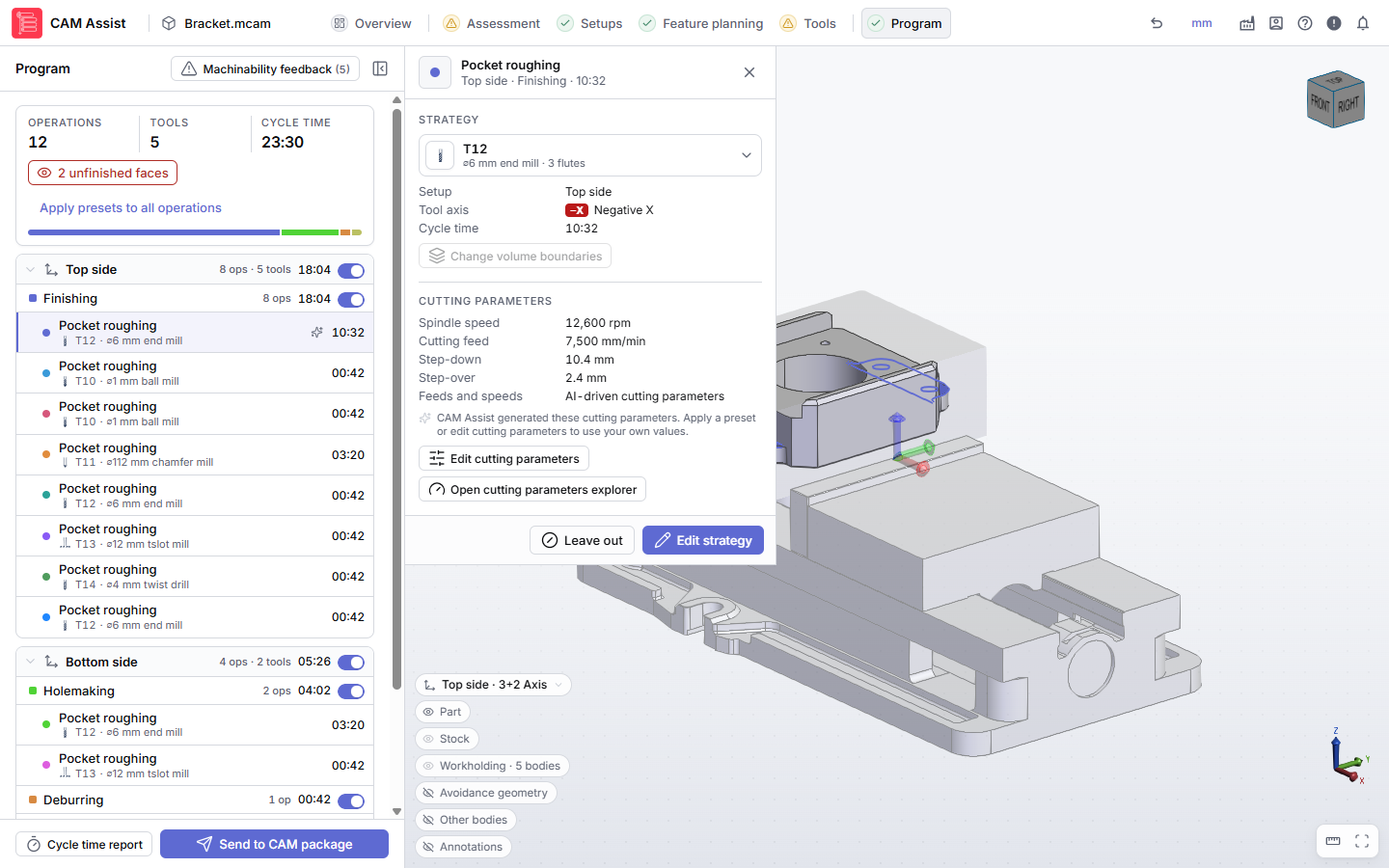
The Program stage is the last stage in the top bar. It shows the program CAM Assist generated, grouped by setup and section, and is where you review, edit and send operations to your CAM package. It opens on its own when you run CAM Assist.
Before the first run
The pane shows No program yet. Click Run CAM Assist to generate the program, or Review stages to open Overview and see what still needs attention. The button reads Run with warnings when a stage has warnings. If it's greyed out, hover over it to see why, or see Why can't I run CAM Assist?.
While CAM Assist runs
A Generating chip appears next to the Program heading, with a progress bar and status message. On the first run, operations appear in the list as they finish. Click Cancel to stop. See Cancel a calculation and Progress messages.
| Message after a run | What to do |
|---|---|
| Program generation failed. You can retry below. | Click Retry CAM Assist. See CAM Assist run failed. |
| Program generation was canceled. | Click Retry CAM Assist when you're ready. |
| Generation completed without a program. Review your inputs and try again. | Check your setups, toolpath types and tools, then retry. See No usable tools. |
The program summary
The top of the program shows the totals for the operations that will be sent:
- Operations, Tools and Cycle time. The cycle time includes the machine's scale factor. See How accurate is the cycle time estimate?
- A bar that splits the cycle time by section. Hover over a part for its setup, section, operation and tool counts, and share of the total. Click it to jump to that section.
- 1 unfinished face or {n} unfinished faces: faces the program leaves unmachined or only partly machined. Click it to show or hide them in the 3D view. See Why didn't CAM Assist finish some faces?
- Apply presets to all operations and related messages about cutting parameters. See Edit cutting parameters for an operation.
Setups, sections and operations
Each setup lists its sections (folders such as Roughing, Holemaking, Wall, Flat, Freeform, Chamfer, Deburring or Probing), and each section lists its operations. Setup and section rows show the number of operations and tools and their cycle time, and have a switch that includes or leaves out everything in them. See Which operations get sent to my CAM package?
Each operation row shows:
- A colored dot that matches the operation's color in the 3D view, and the operation name, for example Adaptive roughing or Wall finishing. Finishing names can end in - rest, - partial or - partial rest. See What are Rest and Partial finishing operations?
- The tool: its number, diameter and type.
- Icons for where the cutting parameters come from (AI params, Preset params or Custom params). Hover over one for details. No preset or Needs params means the operation needs cutting parameters before it can be sent.
- The estimated machining time.
Use the arrow keys to move between rows.
The operation panel
Click an operation row to open its panel beside the pane.
| Section | What's there |
|---|---|
| Strategy | The tool, Setup, Tool axis and Cycle time. Click the tool for Change tool assembly or Open in tool library. Click the tool axis badge to preview how the tool approaches. Finishing operations have Split operation; roughing operations have Change volume boundaries. |
| Cutting parameters | Spindle speed, Cutting feed, Step-down, Step-over and where they come from. Edit cutting parameters and Open cutting parameters explorer. |
| Footer | Delete (finishing only), Leave out or Include, and Edit strategy. |
If a button is greyed out, hover over it to see why. Waiting for full program means the run hasn't finished yet.
| Task | See |
|---|---|
| Change the tool, setup, operation type or tool axis | Edit an operation |
| Change the tool only | Change an operation's tool |
| Change a finishing operation's faces | Change which faces a finishing operation machines |
| Split a finishing operation | Split a finishing operation |
| Change which volumes a roughing operation cuts | Change roughing boundaries |
| Delete a finishing operation | Delete a finishing operation |
| Change feeds and speeds | Edit cutting parameters for an operation or The Cutting Parameters Explorer |
Below the operations, Undo edit, Redo edit and Undo all edits step back through your edits. See Undo strategy edits.
After some edits, Recalculate edited strategy appears at the top of the pane. Click it so roughing and deburring match your edits before you send.
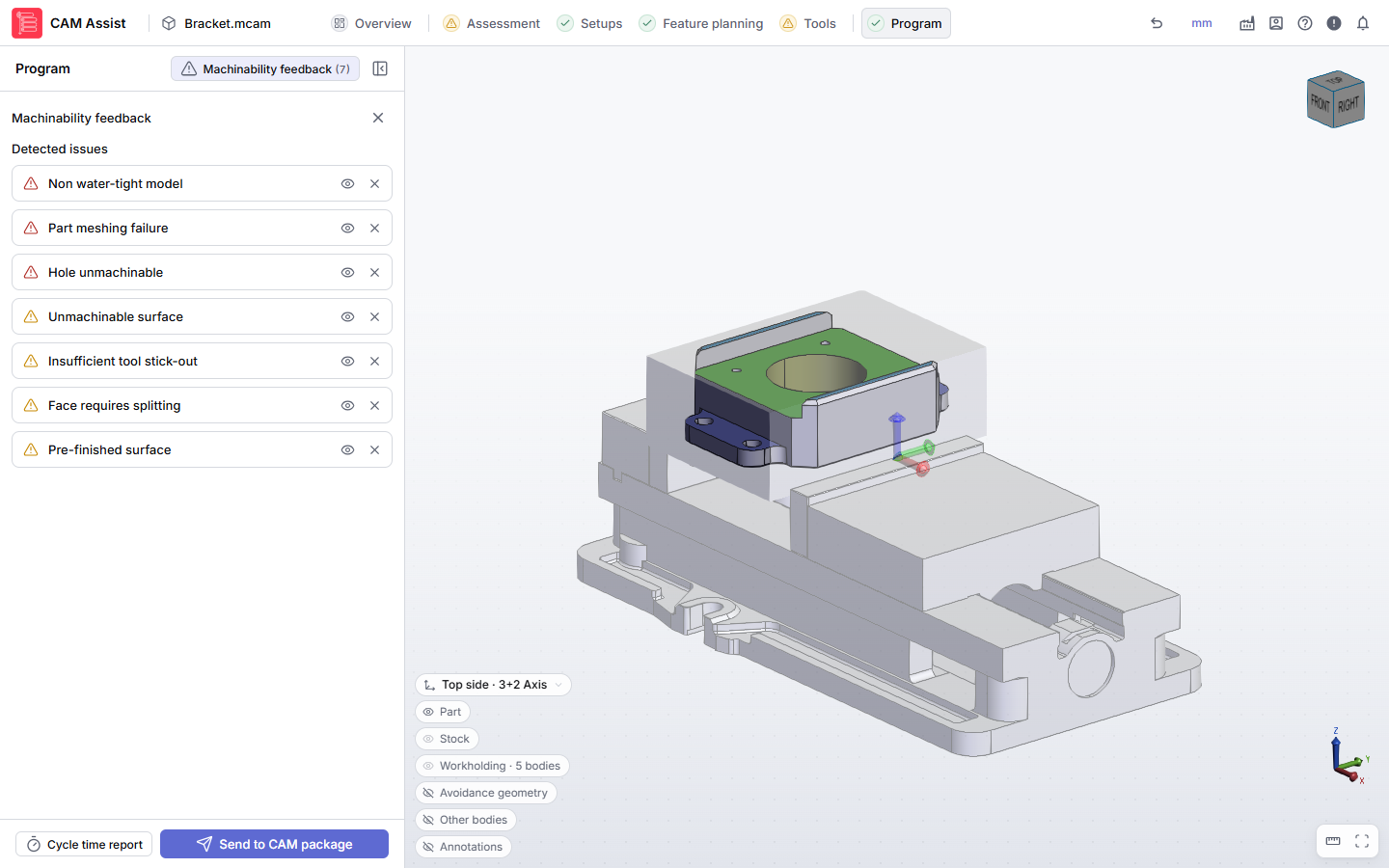
Machinability feedback
Click Machinability feedback in the pane header to see the machinability issues found for the part, in place of the operation list. The number shows how many kinds of issue there are. Click the close icon to return to the operations. The button is greyed out while the strategy editor is open.
Cycle time report and Send to CAM package
The footer has two buttons once a program exists:
- Cycle time report: add setup, tool change and part-to-part time, and export to CSV. See Estimate cycle time and export a cycle time report.
- Send to CAM package: create the operations in your CAM package. With some CAM packages it reads Send 1 operation or Send {n} operations. See Send your program to your CAM package.
"Program out of date"
You changed an input, such as a setup, tool or configuration setting, after the run. The Out of date chip appears next to the heading, and a Program out of date message appears over the 3D view.
- Click Regenerate to run CAM Assist again with your changes.
- Click Later to hide the message. The Out of date chip stays.
- Or send the program you already have. The send button shows a warning icon, and its tooltip reminds you it uses the inputs from the last run.
If the message says "The program being generated uses the inputs from the last run", a run is in progress. Your changes apply to the next run.
Resize or hide the pane
Drag the pane's edge to resize it, or click the collapse button in the pane header to hide it. Click Open Program on the narrow bar to bring it back.