

How to install CAM Assist in Siemens NX 2306 to 2512, and where to find it afterward.
Supported versions
| Siemens NX version | Supported |
|---|---|
| NX 2212 | Not officially supported |
| NX 2306 | Yes |
| NX 2312 | Yes |
| NX 2406 | Yes |
| NX 2412 | Yes |
| NX 2506 | Yes |
| NX 2512 | Yes |
NX 2212 and earlier versions aren't officially supported, and the download page doesn't offer an installer for them.
There's one installer per NX version. On the CloudNC download page, select NX CAM, choose Standard (or GovCloud if your plan includes it), then click the button for your version, for example CAM Assist 2.0 for NX 2412. Each installer works with that NX version only. If you use more than one version, install each one.
For US government customers there's a separate GovCloud installer for each NX version. See CAM Assist for GovCloud.
Before you start
- Your Siemens NX license must include solid modeling. See Which Siemens NX licenses does CAM Assist need?.
Install
- Close Siemens NX.
- Run the installer for your NX version.
- Accept the terms of use and follow the steps. The installer also installs the Microsoft Visual C++ runtime and CloudNC Soft Jaw Designer.
- Open Siemens NX.
CAM Assist installs to C:\ProgramData\CloudNC\Siemens NX\Add-ins\CloudNC CAM Assist.
It doesn't normally need administrator rights, but your IT setup may require them.
CAM Assist for NX is installed for your Windows user. Anyone else who uses NX on the same PC installs it under their own account.
Find CAM Assist
- Open a part.
- Switch to the Manufacturing application: on the Application tab, click Manufacturing (or press Ctrl+Alt+M).
- Open the CloudNC tab on the ribbon (CloudNC GovCloud on GovCloud) and click CAM Assist.
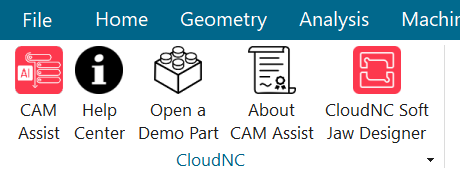
The CloudNC tab also has Help Center, Open a Demo Part, About and CloudNC Soft Jaw Designer. With no part open, it shows only Open a Demo Part. See Open a demo part in Siemens NX.
The first time you run CAM Assist, it asks you to sign in to your CloudNC account. If that doesn't work, see Sign-in problems.
Check it's working
Click About on the CloudNC tab. The About CAM Assist window shows your CAM Assist version.
If it doesn't appear
- No CloudNC tab, or only Open a Demo Part: see CAM Assist is missing in Siemens NX.
- The CAM Assist button does nothing, or the window closes: see The CAM Assist window doesn't open in Siemens NX.
If you've done all of this and still can't start CAM Assist, contact CloudNC support. Include your NX version and the log files from %ProgramData%\CloudNC Ltd\CAM Assist\logs.