

CAM Assist runs inside GibbsCAM 2025, 2026 and 2027 on Windows. This covers which installer to use, installing it, and finding the CAM Assist buttons.
Supported versions
| GibbsCAM version | Installer |
|---|---|
| 2025 | CAM Assist for GibbsCAM 2025 |
| 2026 | CAM Assist for GibbsCAM 2026_2027 |
| 2027 | CAM Assist for GibbsCAM 2026_2027 |
GibbsCAM 2026 and 2027 share one installer. In any other GibbsCAM version, CAM Assist doesn't load and no message appears.
Download the installer from the CloudNC download page: select GibbsCAM, choose Standard (or GovCloud if your plan includes it), then click CAM Assist 2.0 for GibbsCAM 2025, CAM Assist 2.0 for GibbsCAM 2026 or CAM Assist 2.0 for GibbsCAM 2027.
Install
- Close GibbsCAM.
- Run the installer for your GibbsCAM version.
- Accept the license agreement and finish the installer. The installer shows where the CAM Assist button appears in GibbsCAM.
- Start GibbsCAM.
CAM Assist is installed for your Windows user account. Anyone else who uses GibbsCAM on the same PC must install it under their own account.
CAM Assist installs to C:\Program Files\Common Files\GibbsCAM Shared\Plugins\CAM Assist for GibbsCAM <version>. The installer doesn't normally need administrator rights, but your IT setup may require them.
For US government (GovCloud) accounts, use the CAM Assist for Gov Cloud for GibbsCAM installer instead. See CAM Assist for GovCloud.
Check it's working
GibbsCAM shows a CloudNC group on the Plug-Ins tab with four buttons:
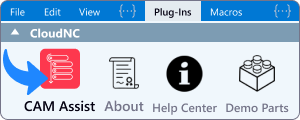
| Button | What it does |
|---|---|
| CAM Assist (CAM Assist for Gov Cloud in GovCloud builds) | Starts CAM Assist on the open part. |
| About | Shows the terms and conditions and links to the CloudNC Help Center. |
| Help Center | Opens the CloudNC Help Center. |
| Demo Parts | Opens a sample part. See Open a demo part in GibbsCAM. |
To try it, open a part and click CAM Assist. See Prepare a GibbsCAM part for CAM Assist.
Your GibbsCAM license needs the GO Milling and GO Solid Milling options. See "GO Milling and Go Solid Milling are required to run CAM Assist".
If it doesn't appear
- No CloudNC buttons, or CAM Assist opens "Download CAM Assist": see CAM Assist is missing from GibbsCAM.
- Buttons or messages show text like
dialog.error.no_part_availableinstead of words: the install is incomplete. Run the installer again. - "CAM Assist unable to initialise [Failed to read dll path].": run the installer again, then restart GibbsCAM.
If you still can't start CAM Assist, contact CloudNC support. Include your GibbsCAM version and the log files from %ProgramData%\CloudNC Ltd\CAM Assist\GibbsCAM\log.