

Bring the tools and machines you already use in your CAM package into CAM Assist, so it programs with them.
Before you start
You need a tool library or CAM file your CAM package can export. Save the part open in your CAM package first: importing an .f3d, .mcam or .vnc file opens it briefly in your CAM package.
| CAM package | Files |
|---|---|
| Autodesk Fusion | .json or .tools tool library, or an .f3d design with Manufacture data (tools, presets and machines) |
| Mastercam | .tooldb tool library, or an .mcam file (tools and machines) |
| GibbsCAM | .tlst tool library or a .vnc part file |
| Siemens NX | .prt part file, or any .dat file to load the NX tool library |
| SolidCAM | .tlm or .tls tool table |
In Siemens NX, selecting a .dat file loads the tool library NX is set up to use (tool_database.dat in NX's metric or inch tool library folder, matching the open part's units), whatever file you pick. Select only one .dat file.
In SolidCAM, CAM Assist loads the tool table with the name you picked from SolidCAM's tool library folders, not from the folder you picked it in. Pick tool tables that are in SolidCAM's tool library folder. Importing doesn't open the tool table in SolidCAM or change your part.
Import
-
In the header, click My Shop, then Import from file in the sidebar. (In Tool libraries, Import in the library picker and Import from file on an empty page open the same import.)
-
Enable all tool usages is ticked, so CAM Assist can use each tool for every toolpath type it supports. Untick it to keep only the usages your file uses each tool for.
-
Click Choose files and choose one or more files. The supported file types for your CAM package are listed on the page.
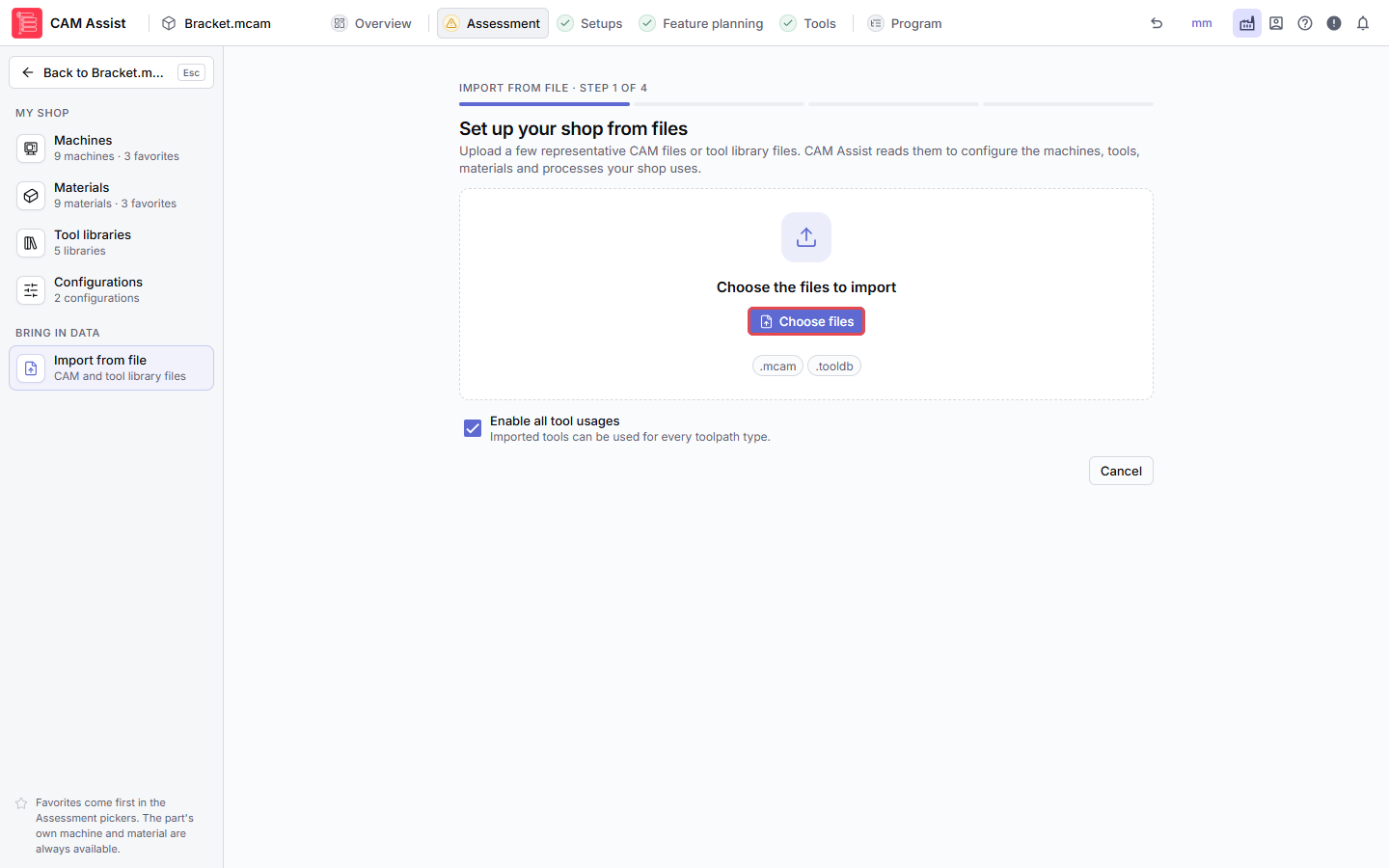
-
Wait for each file to show Complete. To add more, click Add more files. Then click Next.
-
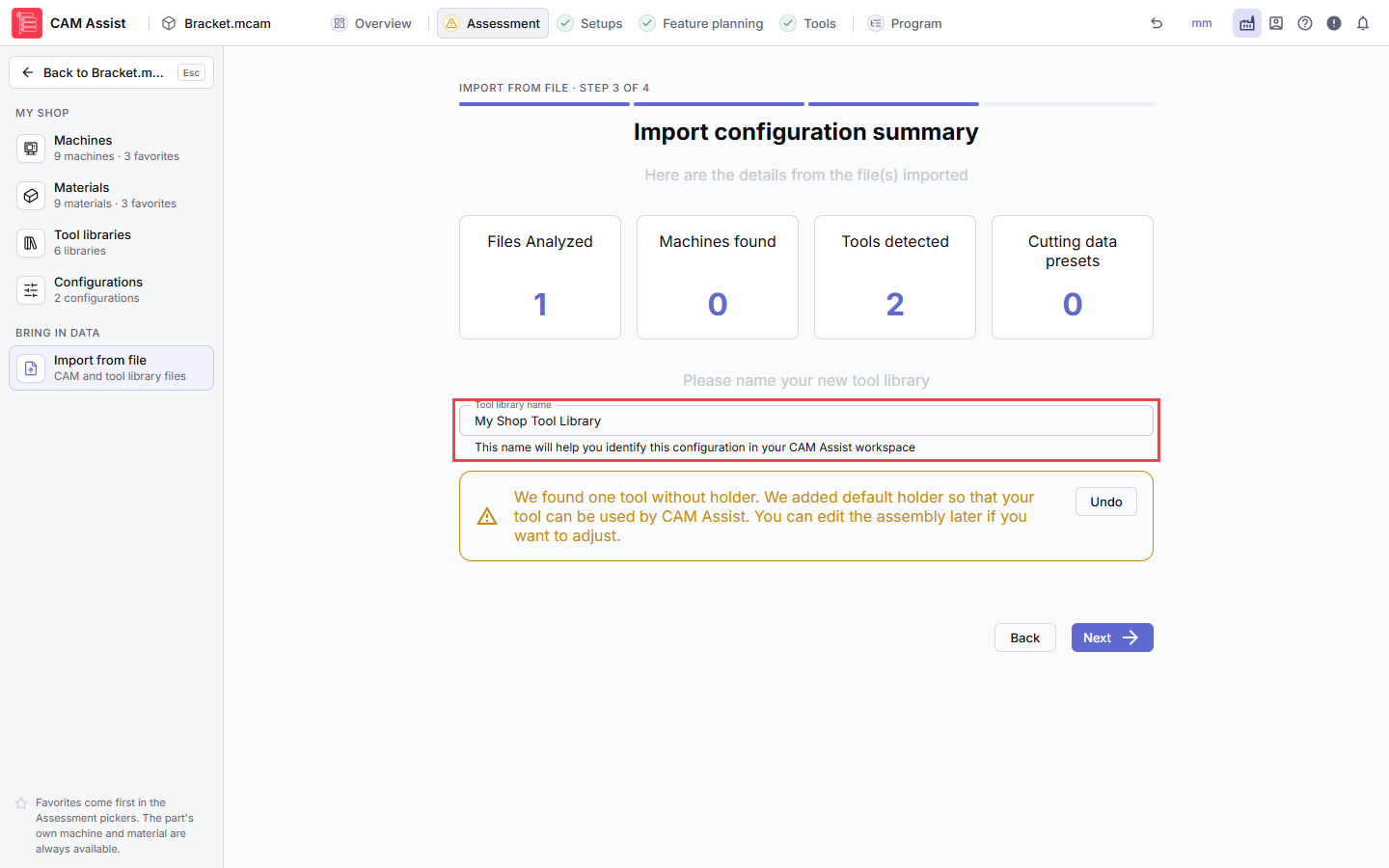
Check the summary, enter a Tool library name, and click Next. CAM Assist suggests a name such as My Shop Tool Library; it must be unique.
-
Click Go to library to see your imported tools, Back to part to return to your part, or Create another library to import more.
If some tools had no holder, the summary page says CAM Assist added default holders. Keep them, or click Undo to remove them. Tools without a holder can't be used. You can edit holders later in the library.
Clicking Cancel before the summary stops the import.
To use the imported library on a part, choose it in the Tools stage. See Add or remove tool libraries for a part.
If a file shows Issue(s), Partial or No item(s) found, see My tool library won't import into CAM Assist.
Imported machines
Machines come from Fusion .f3d and Mastercam .mcam files. They appear in My Shop > Machines. SolidCAM tool tables import tools only: in SolidCAM, CAM Assist uses the machine set on the CAM part. CAM Assist doesn't read spindle torque, spindle power or minimum spindle speed from Mastercam, so check them after import. See Machine details.
Videos
These CloudNC Academy videos were recorded with an earlier version of CAM Assist, so some screens look different.
- How to add tools in CAM Assist for Fusion
- How to add tools in CAM Assist for GibbsCAM
- How to add tools in CAM Assist for Mastercam
- How to upload tools in CAM Assist for Siemens NX