

The Machines page in My Shop lists the machines CAM Assist can calculate cutting parameters and cycle times for. Use it to mark favorites, add your own machines, and fix machines with missing details. You choose the machine for a part in the Assessment stage.
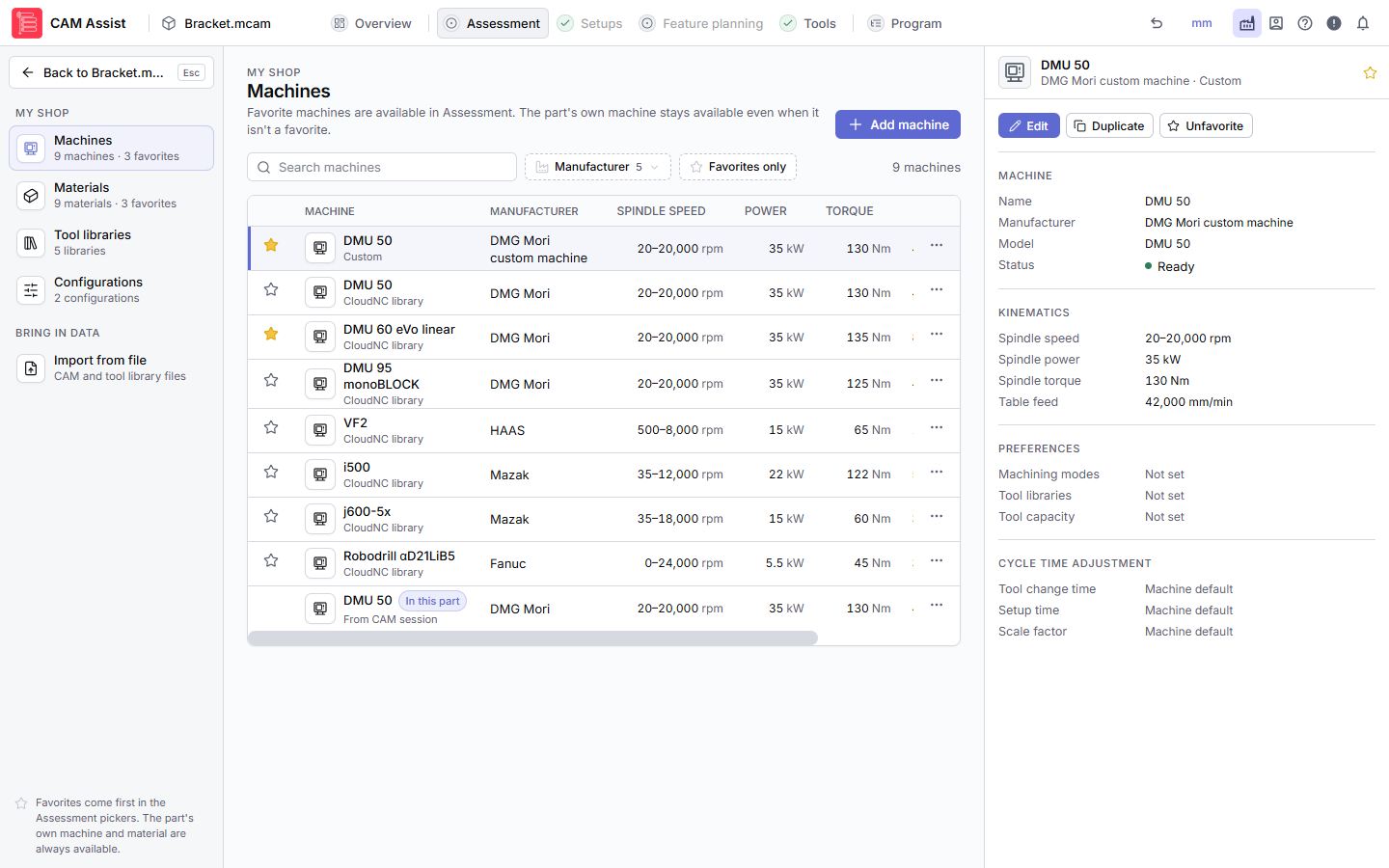
Open the Machines page
- Click My Shop in the header.
- Click Machines in the My Shop sidebar.
From the Assessment stage, you can also click Manage in My Shop at the bottom of the Machine list.
What's on the page
| Item | What it does |
|---|---|
| Add machine | Creates your own machine. See Add or edit a machine in CAM Assist. |
| Search machines | Finds machines by name, model, manufacturer, status or limits. |
| Manufacturer | Shows only one manufacturer's machines. Machines with no manufacturer are under Unspecified. |
| Favorites only | Shows only your favorites. Clear filters removes the filters. |
| Star | Marks a favorite. Favorites are listed first in the Assessment stage's Machine list. |
| Machine | The name, where it comes from, and In this part for the machine the open part uses. |
| Spindle speed, Power, Torque, Table feed | The machine's limits, in your unit system. See Machine details CAM Assist needs. |
| Status | Ready, or Incomplete when a detail is missing or out of range. Hover over Incomplete to see which. |
| ⋯ | The row menu: see below. |
Click a column heading to sort by it. Click a row to see its details in the side panel; double-click it to open it. Long lists show Show more at the bottom.
Where machines come from
| Shown as | What it is | What you can do |
|---|---|---|
| CloudNC library | A built-in machine supplied by CloudNC | View, favorite, Duplicate. To change one, duplicate it and edit the copy. |
| Custom | A machine someone in your organization added | Edit, favorite, Duplicate, Remove |
| From CAM session | The machine set in your CAM package for this part. Autodesk Fusion, Mastercam and SolidCAM only. | Edit, Save as to keep it as one of your own machines |
Remove asks you to confirm and can't be undone. If you remove the machine the part uses, choose another one in the Assessment stage.
GibbsCAM and Siemens NX don't send a machine to CAM Assist, so they never show a session machine. Add your machine here instead.
A machine shows "Incomplete"
The machine has a value CAM Assist can't use. Hover over Incomplete to see the list under "Machine parameters need fixing:", then open ⋯ > Edit and correct those values.
The side panel
Click a machine to see its Machine, Kinematics, Preferences and Cycle time adjustment details. The panel's buttons match the row menu, plus Favorite or Unfavorite.