

CAM Assist needs an active subscription for the email address you sign in with. Here's how to check it and what each status means.
Check your status
Click Account (the account icon), then My Account. It shows the email you're logged in as and your subscription status.
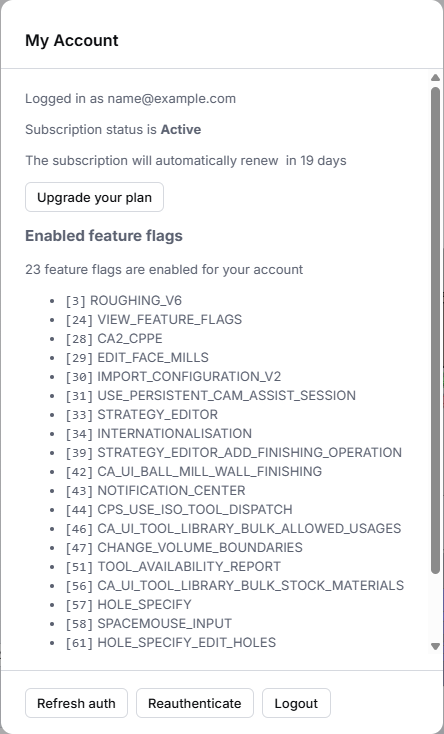
| Status | What it means | Button |
|---|---|---|
| Active | Your subscription is running. It may say when it renews ("The subscription will automatically renew in …"). | Upgrade your plan |
| Trialing | You're on a trial (see below for the end date). | Buy CAM Assist |
| Non-renewing | Your subscription ends at the time shown ("The subscription does not renew, and will end in …"). | Open subscription management portal |
| Paused | Your subscription is paused. | Resume subscription |
| Past due, Unpaid or Canceled | "Your contract has expired. Renew now below!" | Open subscription management portal |
| Any other status | Open subscription management portal |
Use the button to manage your subscription.
When does my trial end?
CAM Assist shows the time left, not a date. Hover over it to see the exact date.
- "Your trial will expire in …": the trial ends then.
- "Your trial ended in …" means the trial ends in that time, and "Your trial will end … ago" means it has already ended. These two messages are worded the wrong way round.
If you see "Failed to fetch subscription status", close My Account and open it again. Check your internet connection if it keeps failing.
"There is no active CAM Assist subscription associated with this email address."
You've signed in with an email that has no CAM Assist access. The screen shows the email you used. Use the links on the same screen:
- Signed in with the wrong email? Click click here to log out., then sign in with the right one.
- Need an account? Click click here to create an account.
- Email doesn't match your CAM package login? Click click here to manage your access email.
If this screen appeared together with An error occurred, CAM Assist couldn't check your subscription, so the message may be wrong. Close CAM Assist, start it again and sign in.
The best check is whether CAM Assist opens and runs. If there's a problem with your subscription, CAM Assist shows a more detailed message when it starts than My Account does.
Messages in Mastercam
When you open the Cutting Parameters Explorer in Mastercam, you might see one of these instead:
| Message | What to do |
|---|---|
| "License error: Unable to log into CAM Assist. Check if your license is expired or invalid. …" | Check your status as above. |
| "No valid subscription found for this account. …" | Sign in with an email that has a subscription, or buy one. |
| "This CAM Assist version cannot be used with a CAM Assist Demo subscription. …" | You have a demo subscription. Install the demo version of CAM Assist, or buy a subscription. |
| "This CAM Assist version can only be used with a CAM Assist Demo subscription. …" | You've installed the demo version. Install the standard version for your subscription. |
| "This is a demo version of … and therefore can only be used with the CloudNC demo parts and tool library." | Use a demo part with the CloudNC sample tool library. |
Still having trouble?
If your status is Active and you still can't use CAM Assist, contact CloudNC support with the email address you sign in with.