
Use Copy to library to copy selected tools from one CAM Assist tool library to another. You can choose an existing library or create a new one.
Copy selected tools
- Open Tool libraries and select the library containing the tools you want to copy.
- Find the tools using Search or Tool type, then select the checkboxes beside them. Confirm the selected tool count.
- Click Copy to library above the tool list.
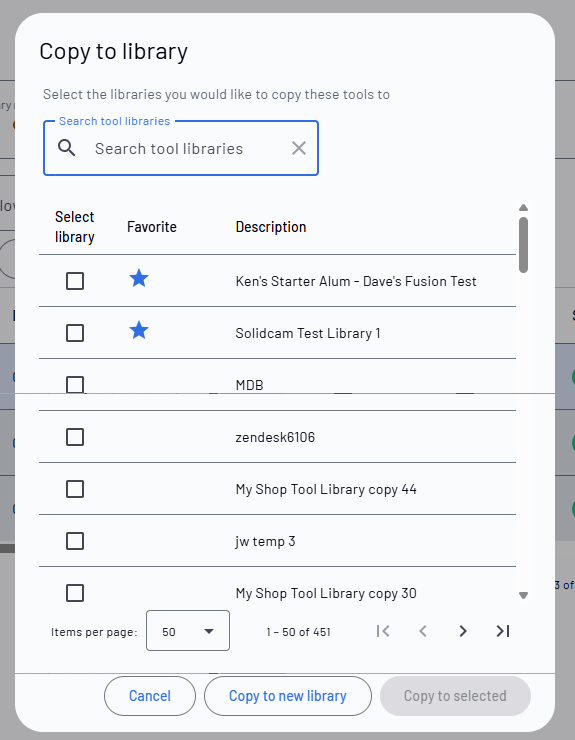
- Choose a destination in the Copy to library window:
- Existing library: Select its checkbox, then click Copy to selected.
- New library: Click Copy to new library.
- Wait for the Results window. If it shows Copied, click the destination library link to open it, or click Done.
- Check that the selected tools appear in the destination library. A new library may have a generated name such as My Tool Library copy 7. Use the pencil icon beside its name to rename it.
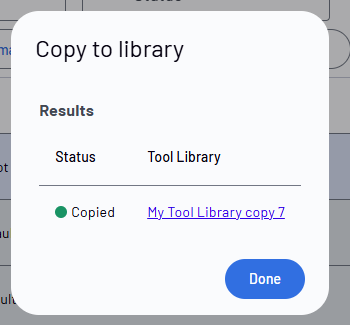
A successful result shows Copied and a link to the destination library.